Joining Servers
This guide shows you how to add Linux, macOS, and Windows servers to your SSH Teams team. Once a server is joined, it will trust the short-lived certificates your team issues.
Before You Start
Before running the join script, make sure:
- The server can reach your SSH Teams instance over HTTPS.
- Someone with team access is available to approve the join request in a browser.
- You have permission to update the SSH service on the server (
sudoon Linux/macOS, administrator PowerShell on Windows). - You know what tags you want to assign, such as
prodordb.
Run the Join Script on the Server You Are Joining
The join script installs your team's trusted CA keys and reconfigures the local SSH service. You must run it directly on the server you want to add. Running it from your laptop or a bastion host will register the wrong host key fingerprint and modify the wrong machine.
Self-Signed Certificates
If you are using a self-signed certificate, the dashboard will show a special join command that bypasses the certificate check. Only use this for initial setup, and switch to a trusted certificate as soon as possible.
About the Hostname Argument
The hostname you give the join script does two things:
- It tells the script which address to scan for the server's SSH host key fingerprint.
- It becomes the display name for the server unless you override it with
--nameor-Name.
SSH Teams identifies a server by its SSH host key fingerprint, not by the hostname string. The examples below use localhost to make it obvious the command is meant to run on the server itself. You can still set a friendly display name with --name "app01".
Where to Find the Join Command
SSH Teams provides two scripts, depending on the server type:
https://<hostname>/join.shfor Linux and macOS.https://<hostname>/join.ps1for Windows.
To get the exact command:
- Open
https://<hostname>/dashboard. - Find the Join Script panel.
- Click the copy icon next to Linux/macOS or Windows.
The command already includes your SSH Teams address, so you do not need to edit the URL by hand.
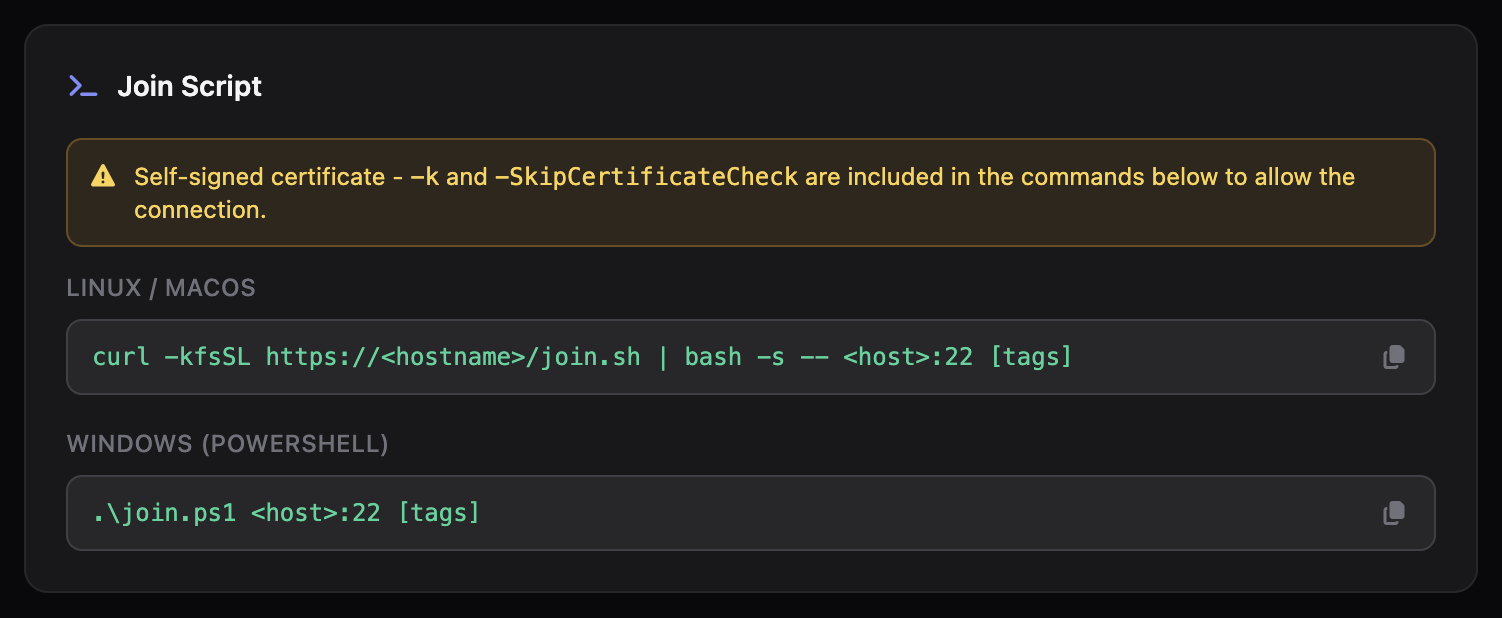
Typical commands look like this:
curl -fsSL https://<hostname>/join.sh | bash -s -- <host>:22 [tags]
irm https://<hostname>/join.ps1 -OutFile .\join.ps1
.\join.ps1 "<host>:22" "prod,windows"
Join a Linux or macOS Server
Run the script on the server you want to add:
curl -fsSL https://<hostname>/join.sh | bash -s -- localhost:22 prod,db --name "app01"
The parts of the command are:
localhost:22— the address the script scans to collect the local SSH host key fingerprint. Usinglocalhostmakes it clear this command must run on the server being joined.prod,db— optional tags that help policies match this server.--name "app01"— optional friendly name shown in the dashboard.--config <path>— optional path to your SSH service config.--bypass-install— optional flag to register the server without changing the SSH config.
What happens when you run it:
- The script collects the server’s SSH host key fingerprint.
- It shows a web link and a code for approval.
- An operator approves the join request in a browser.
- The script registers the server with SSH Teams.
- It stores the trusted certificate authority keys on the server.
- It updates the SSH service config to trust those keys.
- It restarts the SSH service.
If you join the same server again later, the script updates the existing registration instead of creating a duplicate.
Join a Windows Server
From an administrator PowerShell session on the target server:
irm https://<hostname>/join.ps1 -OutFile .\join.ps1
.\join.ps1 "localhost:22" "prod,windows" -Name "app01-win"
The Windows script does the same thing as the Linux/macOS script:
- Requests approval through the browser.
- Registers the server.
- Saves the trusted keys.
- Updates the SSH service config.
- Restarts the SSH service.
Note for Windows
The Windows join script uses a placeholder host key fingerprint. After joining, check the server details in the dashboard and confirm your policies match as expected.
If Your Certificate Is Self-Signed
For Linux or macOS, use the dashboard command with the certificate bypass flag:
curl -kfsSL https://<hostname>/join.sh | bash -s -- localhost:22 prod,db --name "app01"
For Windows:
irm -SkipCertificateCheck https://<hostname>:9443/join.ps1 -OutFile .\join.ps1
.\join.ps1 "localhost:22" "prod,windows"
Use This Only Temporarily
Bypass flags are meant for bootstrap only. Switch to a trusted certificate and re-run the join command once your certificate is in place.
Check That the Server Was Added
After the script finishes:
- Open
https://<hostname>/dashboard. - Check that the server count has gone up.
- Open the server inventory and check:
- hostname
- port
- operating system
- tags
- Make sure at least one policy can match this server.
On the server itself, you can also verify:
- The file
~/.ssh/sshteam_trusted_user_ca_keysexists and has content. - The SSH service config mentions
TrustedUserCAKeys. - The SSH service restarted without errors.
Fixing Common Join Problems
-
The script cannot be downloaded.
- Check that the server can reach
https://<hostname>/join.shor/join.ps1. - Check your firewall or proxy settings.
- Check that the server can reach
-
The browser approval step does not complete.
- Make sure the approval URL was opened and approved by a signed-in team member.
- If the code expired, run the script again.
-
The join request fails with an error.
- Read the full script output.
- Check that the hostname, port, tags, and server ID are correct.
-
Permission denied while updating SSH config.
- Run with
sudoon Linux/macOS, or as administrator on Windows. - Use
--bypass-installor-BypassInstallto register first, then update the SSH config manually.
- Run with
-
Duplicate server records appear.
Keep the Server ID During Rebuilds
If you rebuild a server, keep the file
/etc/sshteam/server-idso the next join updates the existing record instead of creating a new one. -
Access is still denied after joining.
- Check that the server has the expected tags.
- Check that your policy matches the right users, server tags, and time windows.
- Confirm the server appears in the correct team inventory.