Adding Users
<!-- AUTOMATION_METADATA_START
screenshot_source_url: https://
This guide explains how to add, update, and remove team members in SSH Teams.
<!-- Automation screenshot source URL: https://
Before You Start
Make sure you are signed in with an account that has permission to manage users. You need either the Manage Users role or the Admin role.
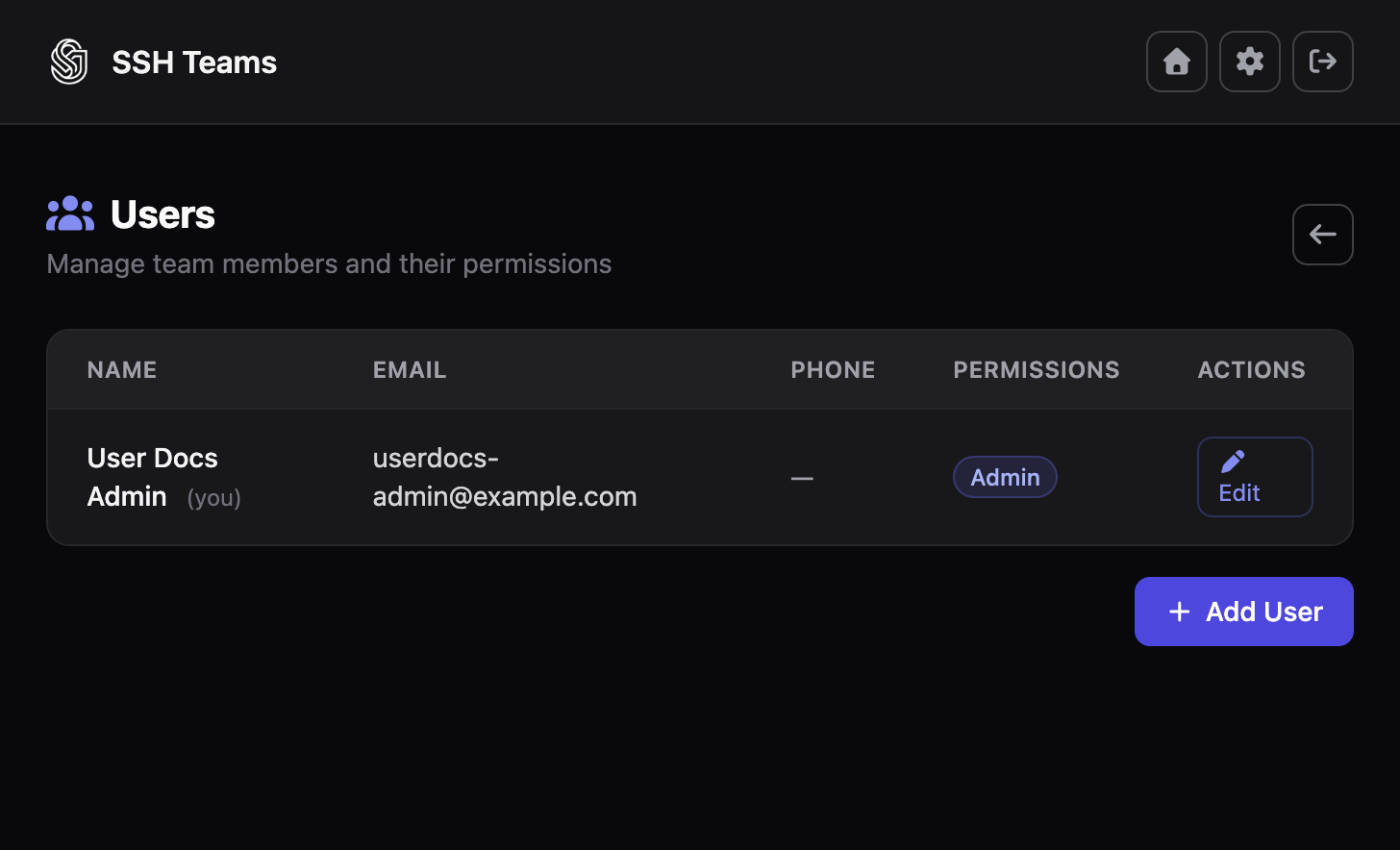
Open the Users Page
- Sign in to SSH Teams.
- Go to Administration -> Users.
If you do not see this section, your account does not have user-management permission.
Add a New User
- Click Add User.
- Fill in the form:
- Display Name: The person's full name.
- Email: The email address they will use to sign in.
- Password: A strong password, at least 8 characters long.
- Phone Number: Optional.
- Choose one or more roles:
- Admin: Full control.
- Manage Users: Can add and edit team members.
- Manage Servers: Can add and manage servers.
- Manage Policies: Can create and edit access rules.
- User: Can connect to servers they have access to.
- Click Create User.
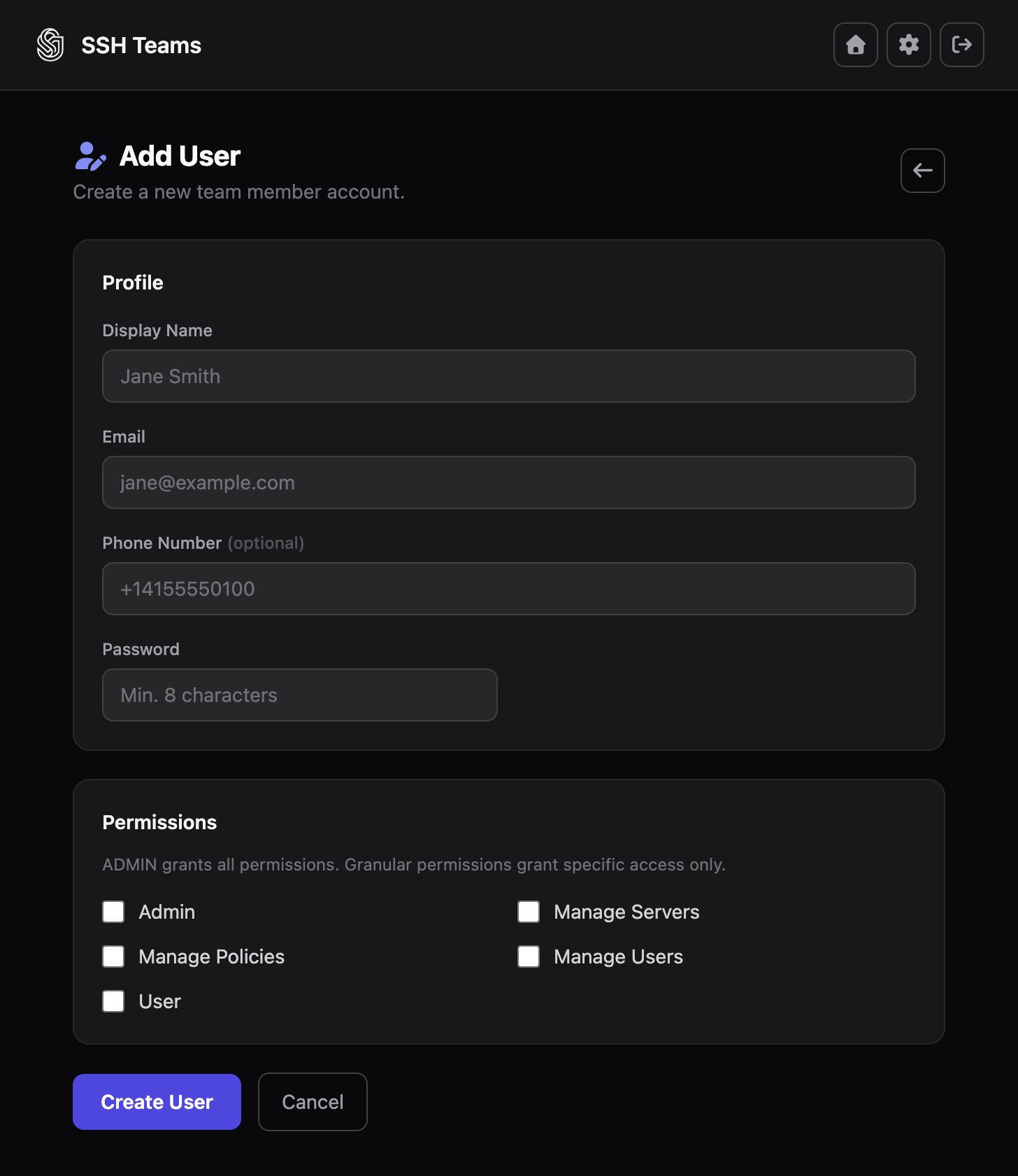
New users are created as verified accounts and can sign in immediately. Email addresses must be unique.
Edit or Delete a User
To edit a user:
- Find the user in the list and click Edit.
- Update the name, email, phone, or roles.
- Leave the password blank to keep the current password, or enter a new one.
- Click Save Changes.
To delete a user:
- Find the user in the list and click Delete.
- Confirm the prompt.
Safety notes:
- You cannot delete your own account.
- You cannot change your own roles from the edit form.
- You can only manage users in your own team.
Check Email Changes
The edit form currently allows email changes without checking for duplicates. Change one email at a time and review the users list afterwards.
Choose Roles Carefully
A good starting point:
- Keep only one or two Admin accounts for emergencies.
- Give Manage Users to the people who onboard and offboard staff.
- Give Manage Servers to the people who add and maintain servers.
- Give Manage Policies to the people who control access rules.
- Give User to everyone who only needs to connect to servers.
Example team setup:
| Person | Role |
|---|---|
| Platform owner | Admin |
| Security engineer | Manage Users + Manage Policies |
| Infrastructure operator | Manage Servers |
| Developer | User |
User Lifecycle Checklist
When someone joins:
- Create their account with the right roles.
- Share the sign-in details through a secure channel.
- Ask them to register a device using the CLI.
When someone changes role:
- Update their roles to match their new responsibilities.
- Change their password if needed.
- Test that their access still matches your policies.
When someone leaves:
- Delete their account.
- Revoke any devices they registered.
- Confirm no policies still grant them access.
Tips
Review Roles Regularly
Check role assignments weekly or monthly. Small, regular reviews prevent access from drifting out of control.
Offboard Devices Too
Deleting a user account does not automatically remove their registered devices. Always revoke devices as part of offboarding.