Creating a Nodal VPN Network
Introduction
Before end users can connect VPN clients to your server, you must first define a VPN Network. A VPN network defines the IP addresses granted to clients, and how clients connect to the server along with what internal IP addresses they can route to.

On the main dashboard, click the Create Network button, then Get Started.
Alternatively, you can navigate to Resources->Networks and click Create.

1. Network Setup
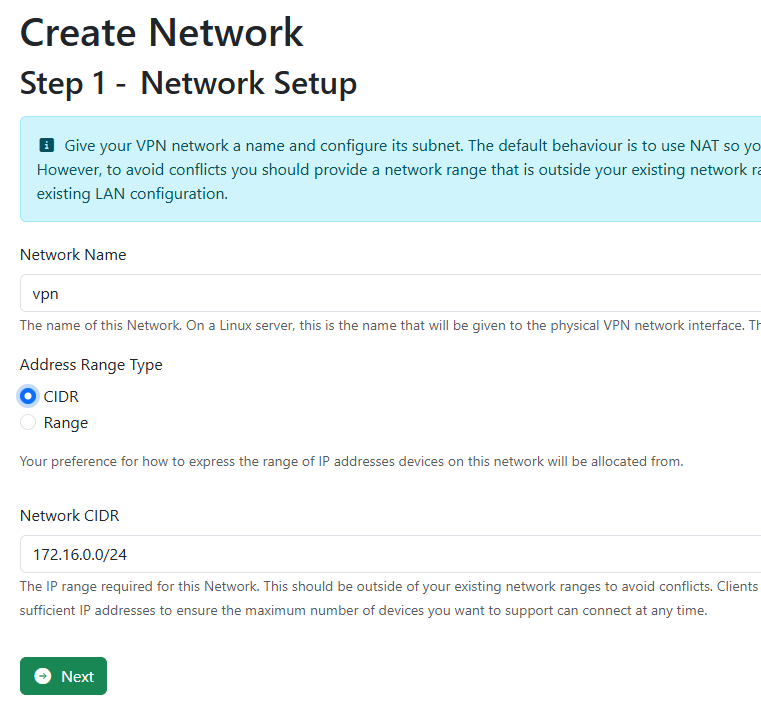
Here we need to give the network interface a name and define the Network CIDR or range that connected clients will be served.
The network name can be anything you want, but note that this is the name that the interface will show as in the underlying OS. You could for example call this wg0, or vpn.
For the Address Range Type, you can enter the addresses either in a CIDR format (i.e 172.16.0.0/24), or you can manually enter a start and end range (i.e 172.16.0.1 - 172.16.0.255). Note that these are addresses internal to the VPN service, so you might want to use a private range that you don't use anywhere else in your network.
Click Next to continue.
2. External Access
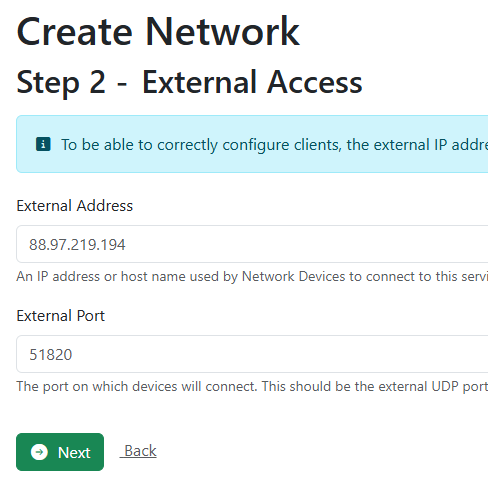
Before your VPN clients can connect, we need to know the external IP address that clients will be connecting to, along with the UDP port for the VPN protocol.
This page will be populated by default with your detected public IP and the default WireGuard protocol port. If this is incorrect, enter the correct external address here.
Regarding the external port, accepting the default 51820 is usually okay, but if you have more than one network configured for a node, this number should increment automatically.
For VPN client's to connect, you must be forwarding both TCP/443 and UDP/51820 through your firewall to point at your VPN server. Click Next to continue.
3. Review Setup
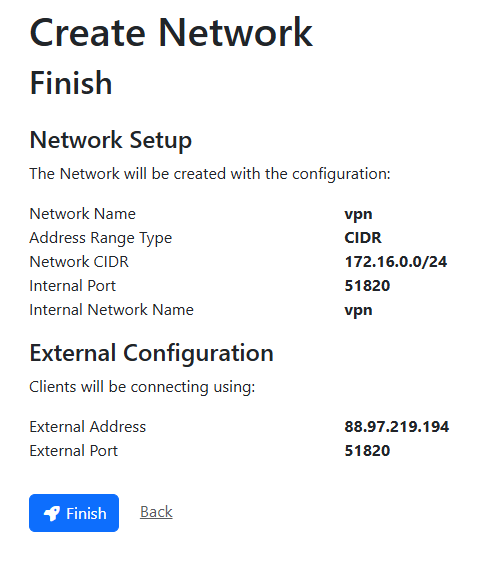
Review the configuration items just entered. If these look good, click Finish.
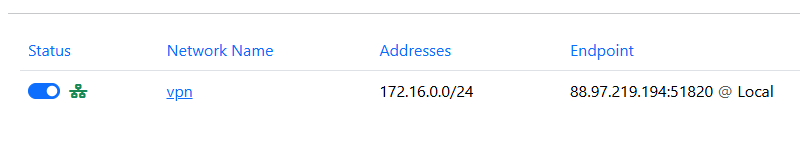
You are now taken to the Resources->Networks page where you can see the configured network, which should have a green status icon showing.