Password Express VM console
Introduction
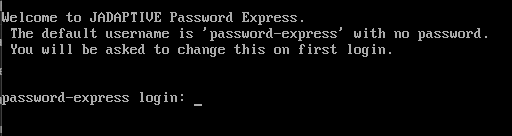
When you deploy a Password Express VM, you will be presented with a login prompt.
The console can be used for operating system upgrades, launching a support callback when you need help and to upgrade Password Express if you are unable to do so from the web UI.
1. Set console password
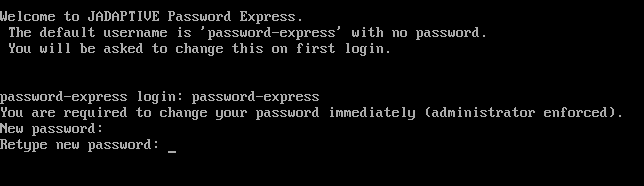
As prompted on the console, log in with the username password-express. You will be immediately prompted to set a new password, please do so now.
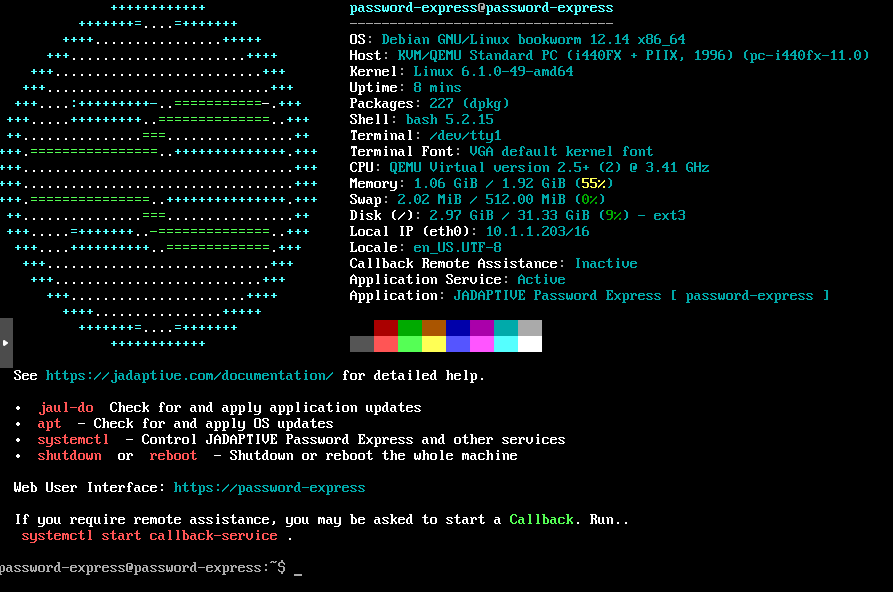
Once the password is set, you are logged in to your system. The system displays some useful information for you, such as memory and disk space, as well as the current IP address.
Also noted on the welcome page are some hints in red of some useful commands you can run here.
2. Useful commands
Callback Service - If you are asked by support to launch a callback, you can run systemctl start callback-service and let support know that your system should be ready for a connection.
Restarting Password Express service - To restart the Password Express service, you can run systemctl restart password-express.
Updating the OS - to update all operating system packages, run apt update then
apt upgrade.
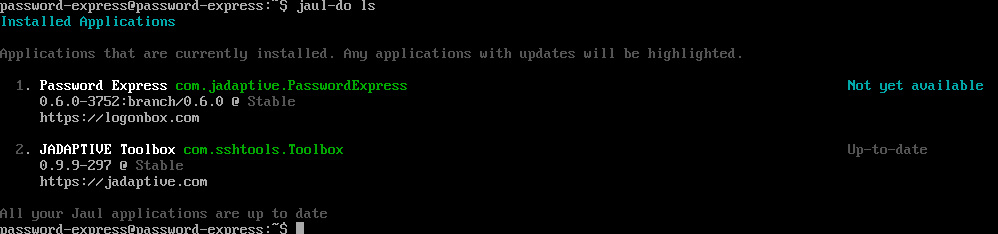
Updating Password Express - You can either run jaul-do update, which will update Password Express and the Support Callback, or if you want to update just Password Express on its own, run jaul-do update com.jadaptive.PasswordExpress and follow any prompts.
If you run jaul-do ls, you will see the status of any Jadaptive packages which are installed and if there are new versions available.