Password Express Get Started Wizard
Introduction
On a newly deployed Password Express VM, you must first run through a quick one-time, 3-step setup wizard. Simply navigate to https:// and the IP address of your newly deployed VM where you will be prompted to start the setup.
1. Usage Agreement
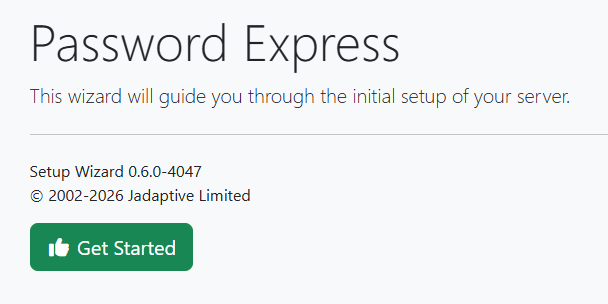
Click the Get Started button which will take you to Step 1 - Usage Agreement.
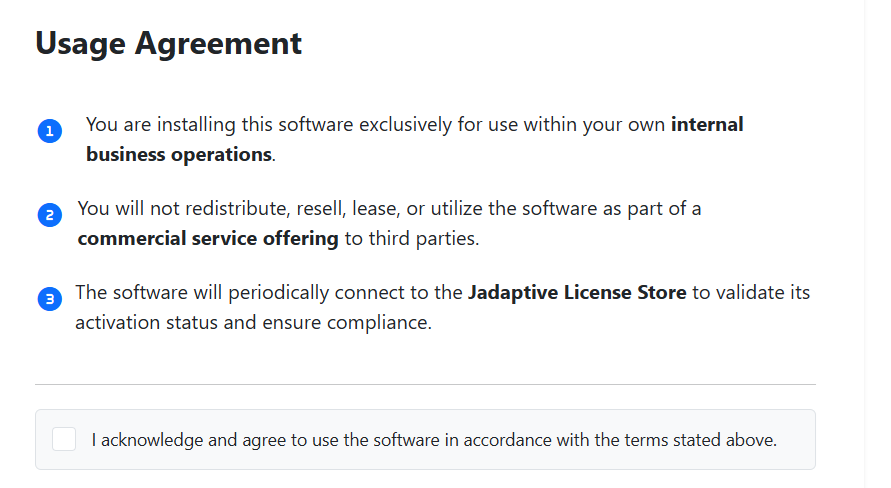
Tick the acknowledge checkbox and click Next
2. Create Credentials
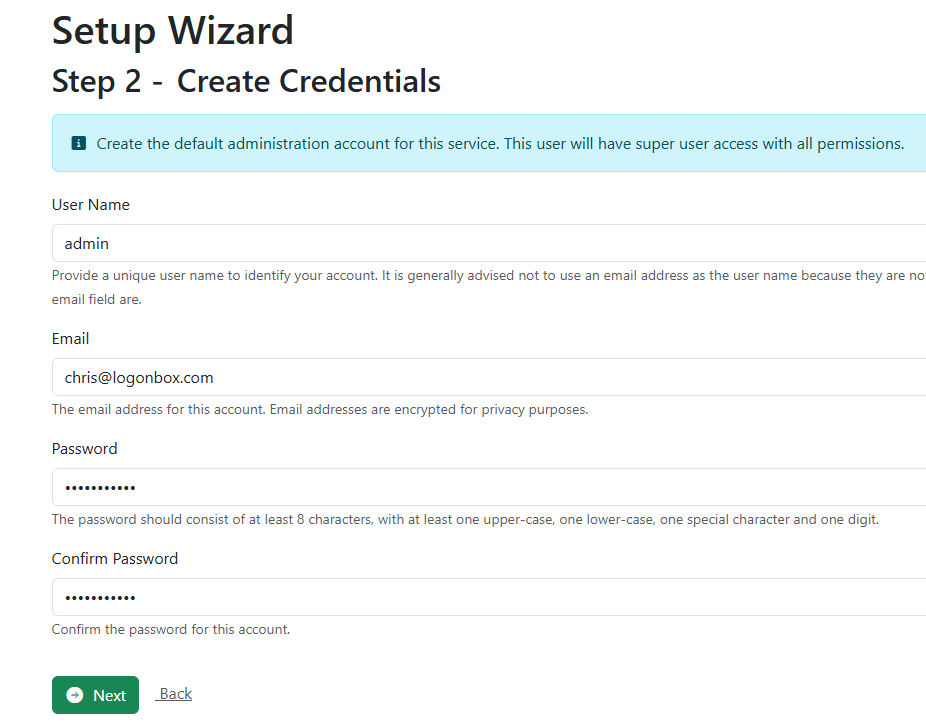
Enter the username you would like to use for the main admin account, along with its password and email address.
Click Next to continue.
3. Phone Configuration
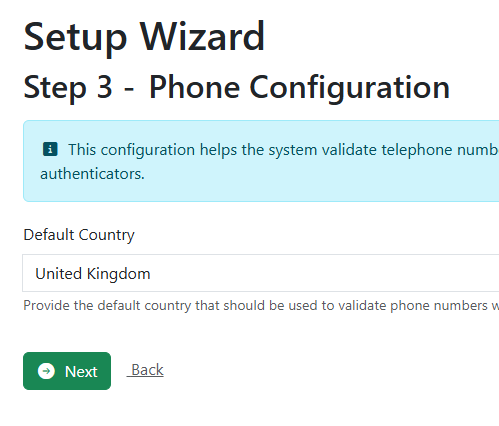
On this page, set the country that the VM is deployed in, this allow the system to validate phone numbers for users if you decide to use them.
Click in the Default Country field, start typing your country name and select it when it appears. Click Next to continue.
4. Configure Password Reset
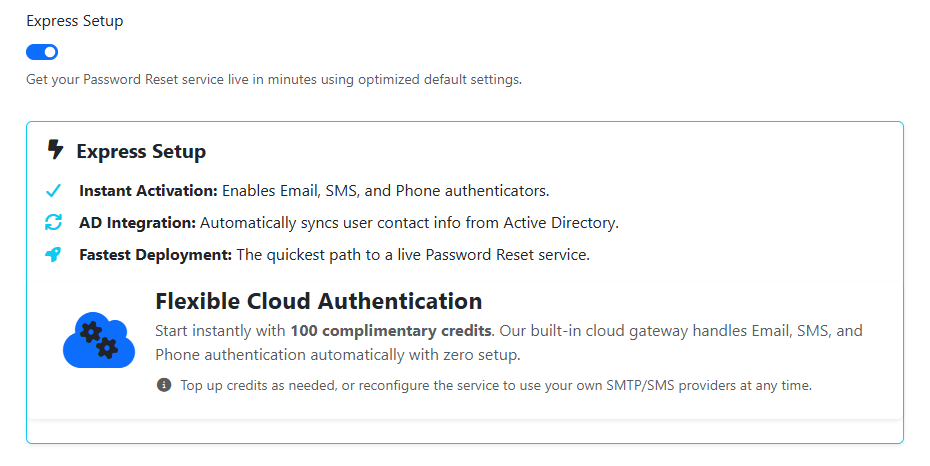
On this page, you can opt to keep the default Express Setup which will preconfigure your new system with Email, SMS and Phone authenticators.
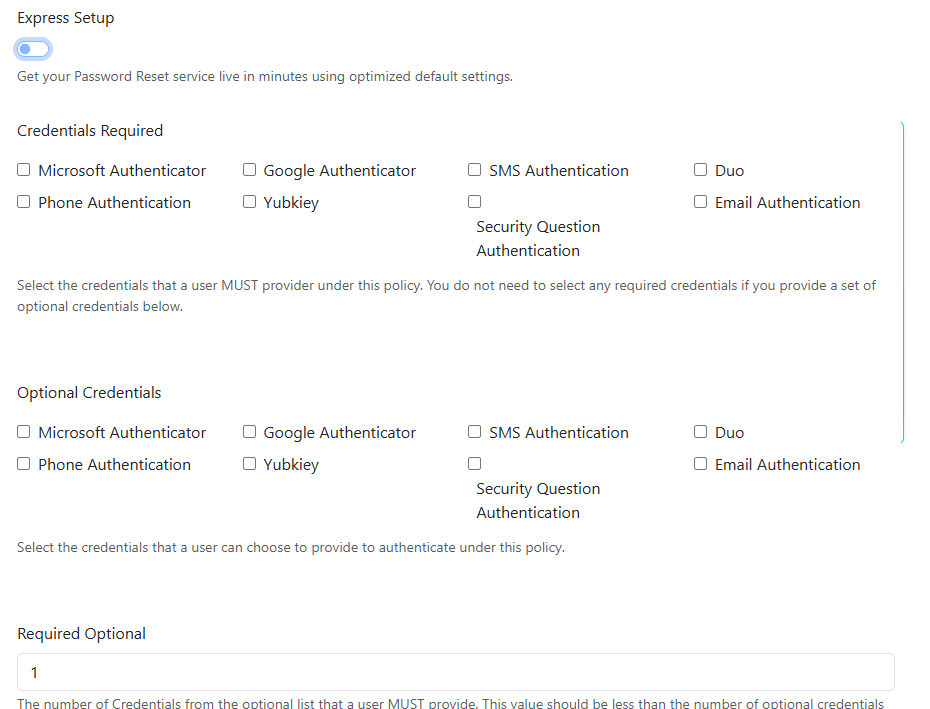
Or you can opt to deselect Express Setup and choose the authenticators you require. You can choose any combination of required and optional credentials (as well as how many optional authenticators to prompt for on a reset).
Click Next to continue.
5. Review Setup
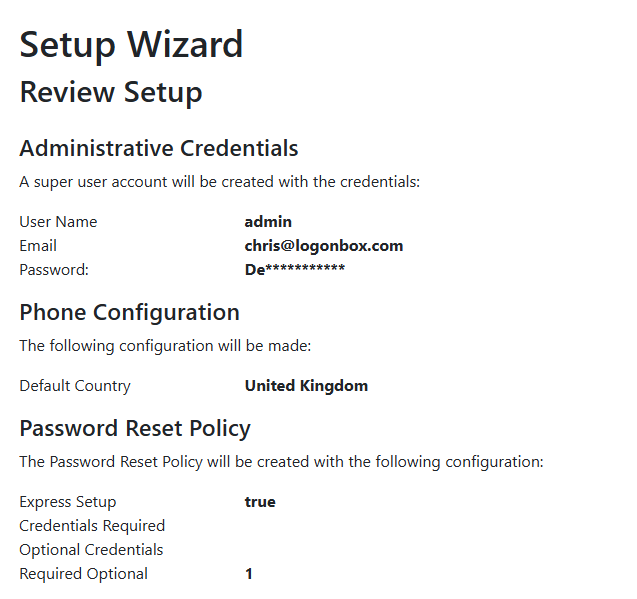
On this page, review the information entered so far. If you need to alter anything, step back and correct any item. If you are happy with the information, click Finish.
6. Setup wizard complete
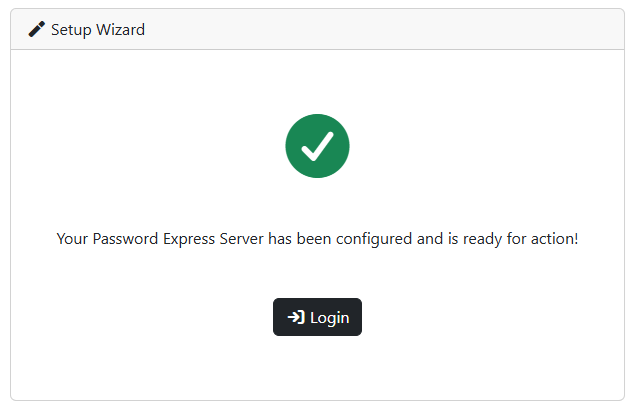
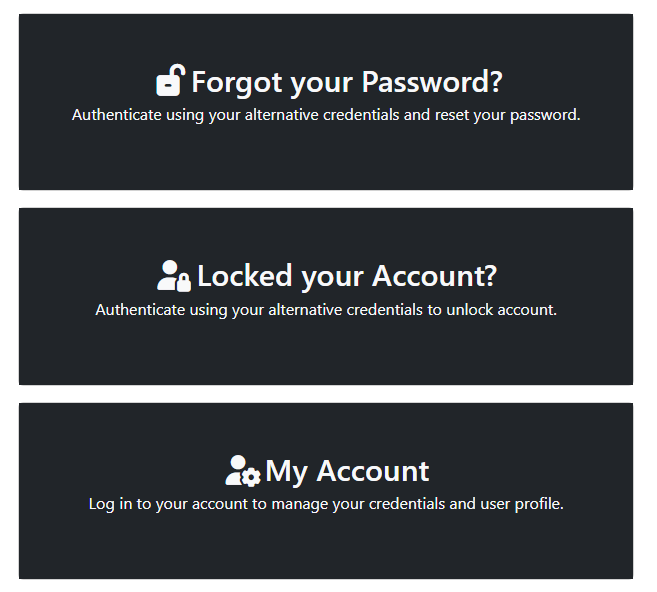
The Get Started wizard is now complete, click Login to take you to the login page, after which you will now see the user portal page. Click My Account and you can now log in with your new admin account.