User and Role Management
Manage access from Users. Create only the accounts required for the work, assign the least-privileged role that supports each responsibility, and review access after personnel or operational changes. Account details show who created and last edited each user by display name, while the account audit trail preserves immutable history.
Account lifecycle meanings
Disabled prevents sign-in while keeping the account visible and reversible. Delete user soft-deletes the account, revokes active sessions, removes it from the normal directory, and retains its audit history. Use the status change when access must be paused; use delete only when the account should leave the active directory.
Start from the account directory
The directory shows non-deleted accounts and their role and status. Use the status filter to review all accounts, active accounts, or disabled accounts. The protected bootstrap account is visible for inspection but cannot be managed like an ordinary user.
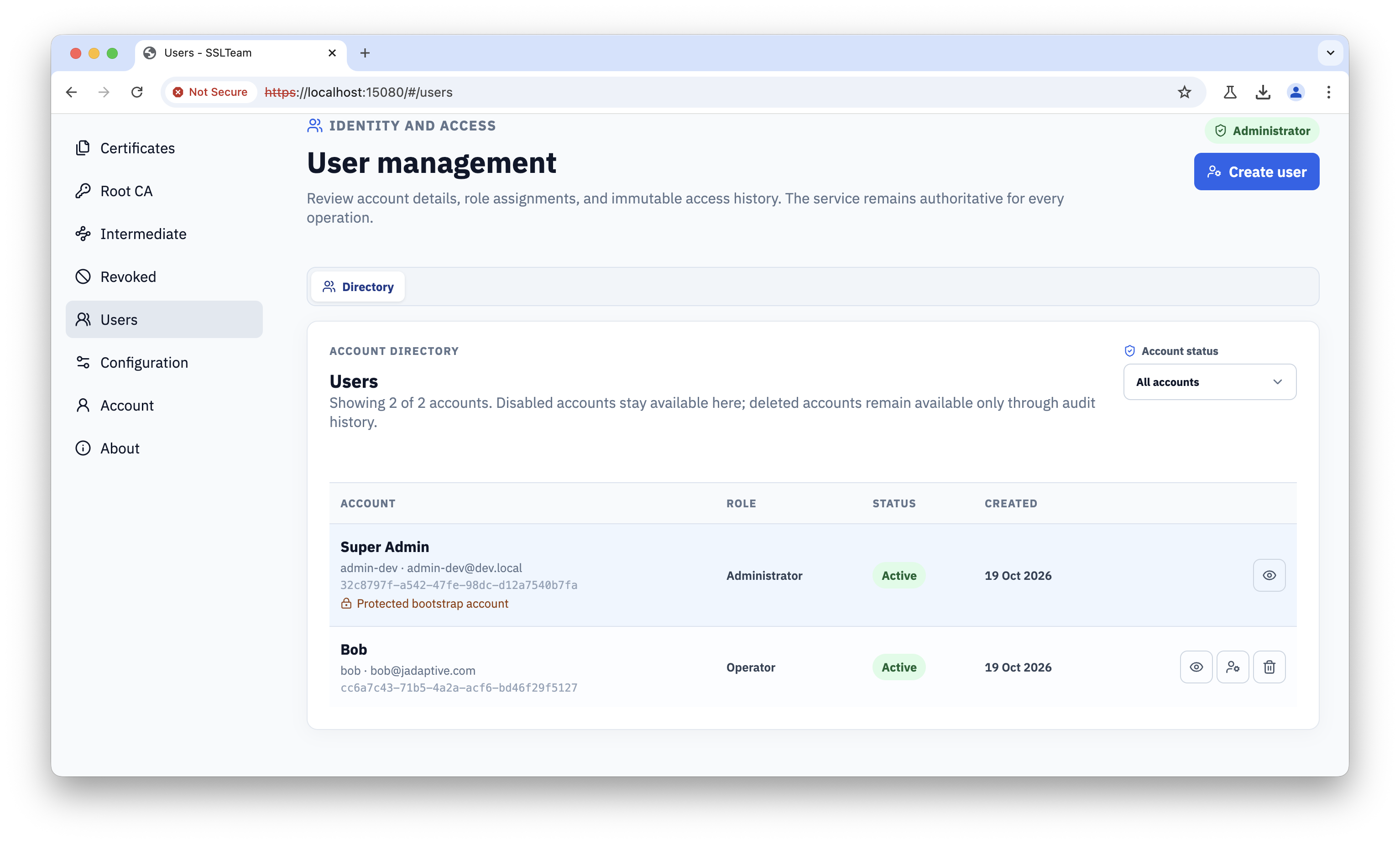
When the directory contains only the protected bootstrap account, its restricted action set is still visible.
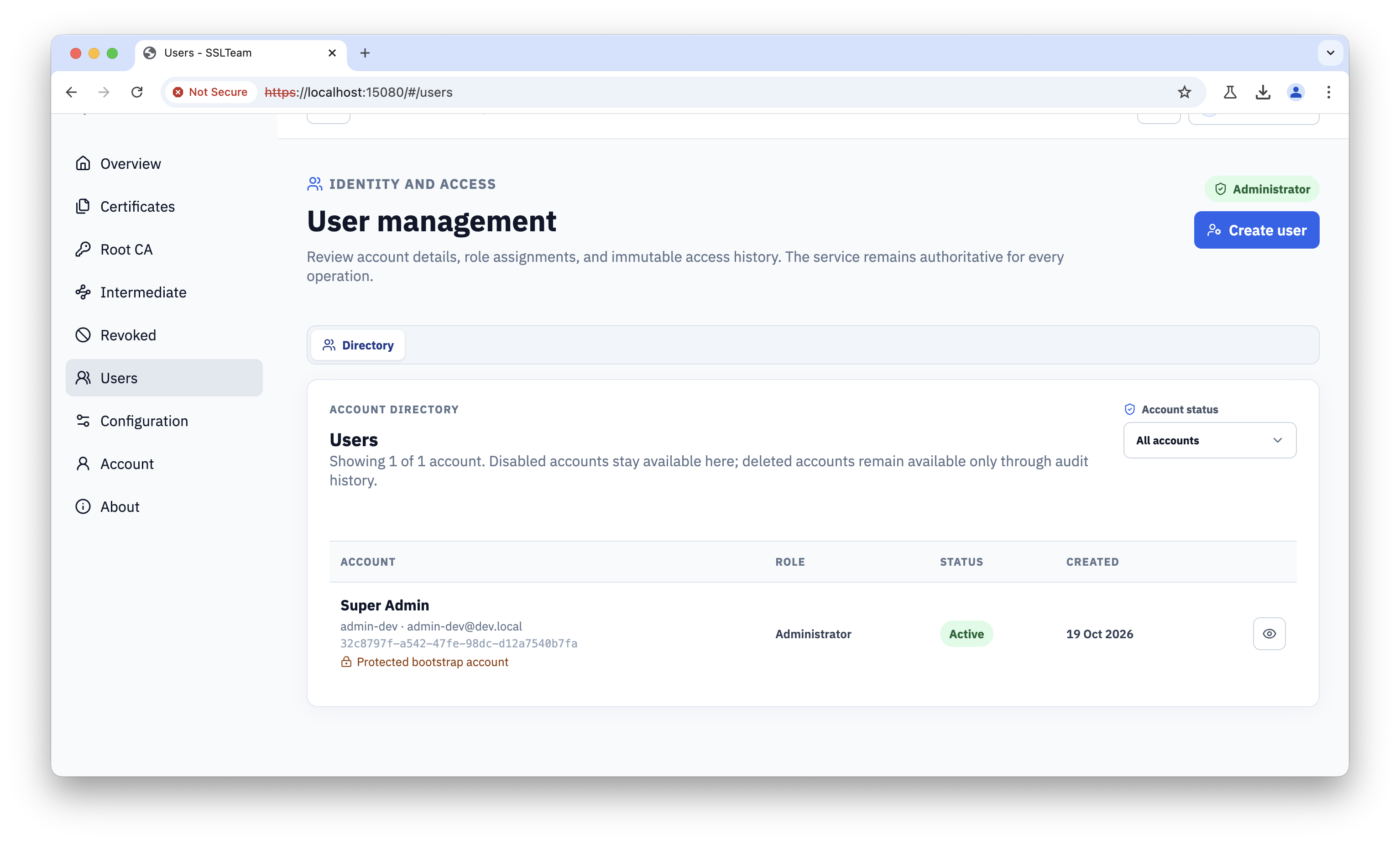
Create a user and deliver the initial password
Select Create user and enter the username, display name, email address, and built-in role. Choose the least-privileged role that supports the user’s duties.
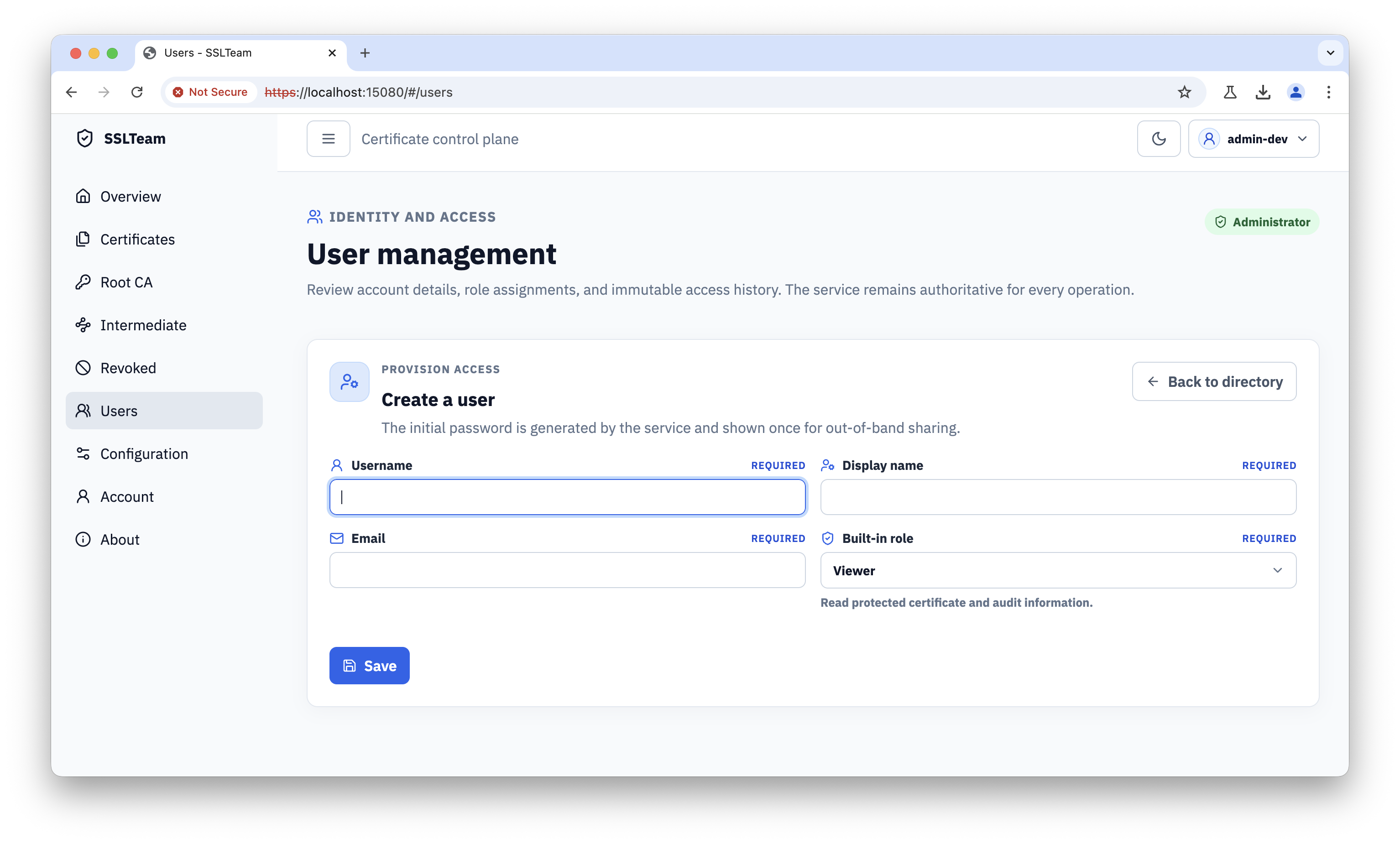
The service generates an initial password and displays it once. Share it through a separate, approved out-of-band channel. Do not place the password in the same message or ticket as the account details, and instruct the user to change it at first sign-in.
Temporary passwords expire
An initial or reset password stops working after its expiry and can no longer be used to change the password. If it expires before first use, reset the credential to issue a new one. Resetting a credential also ends any CLI sign-in that user had in progress.
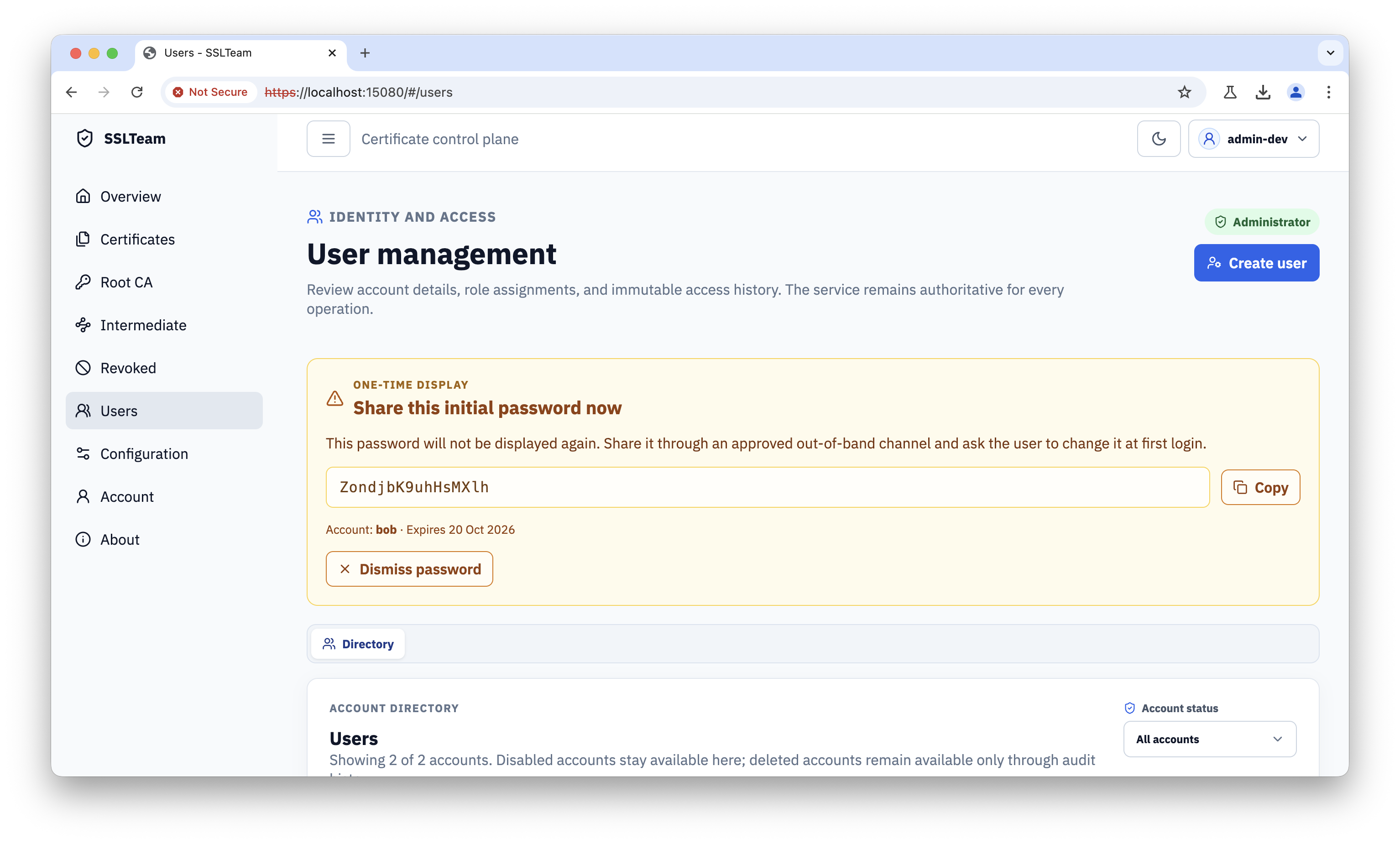
Return to the directory and confirm that the account has the expected role and Active status.
View account details and audit history
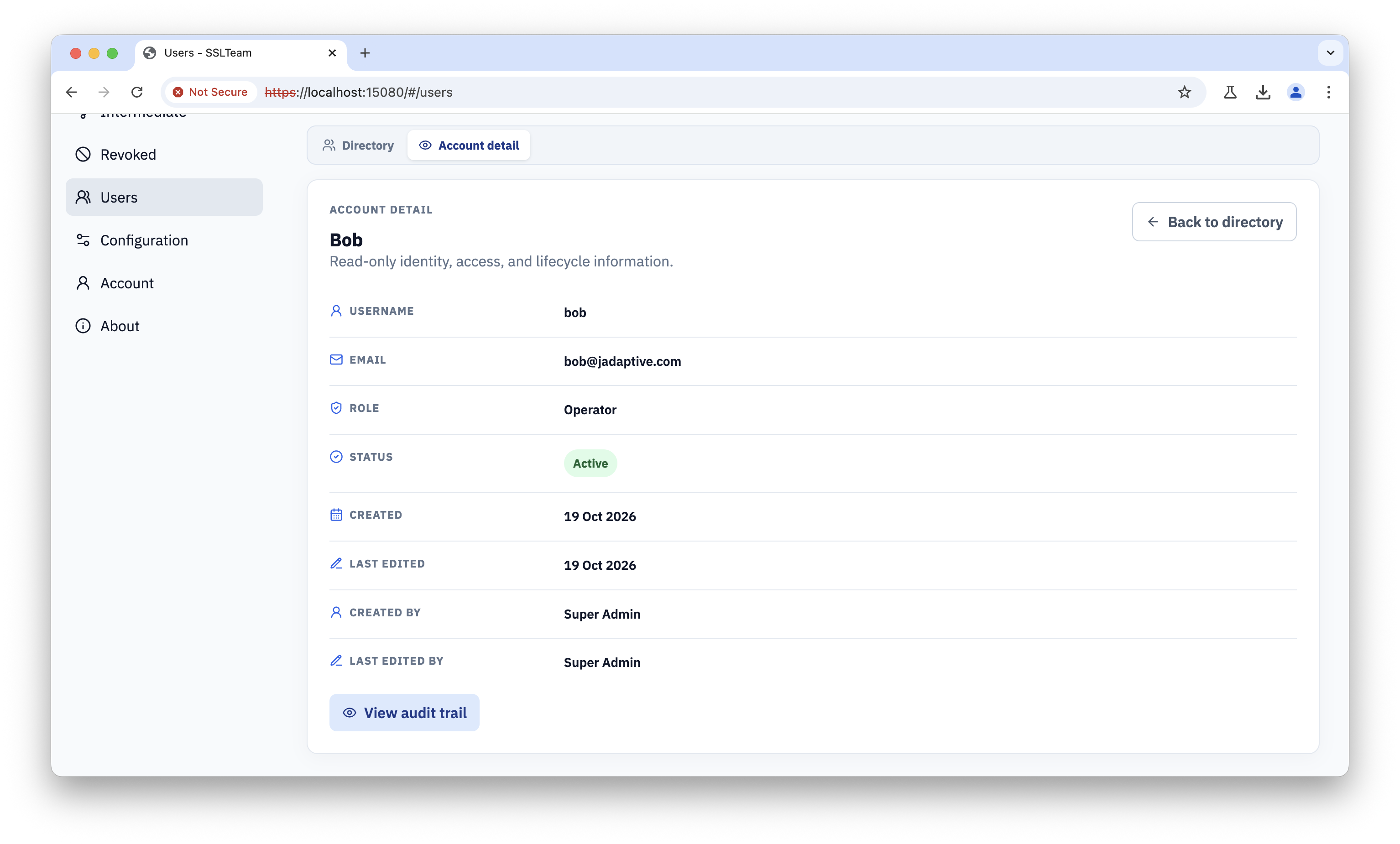
Select the view action beside an account to open its read-only details. Confirm the username, email, role, status, creation and edit timestamps, and the display names of the users who performed those actions.
Select View audit trail to load the append-only account history. Search or filter events by actor, reason, outcome, or event type. Audit entries cannot be edited or deleted.
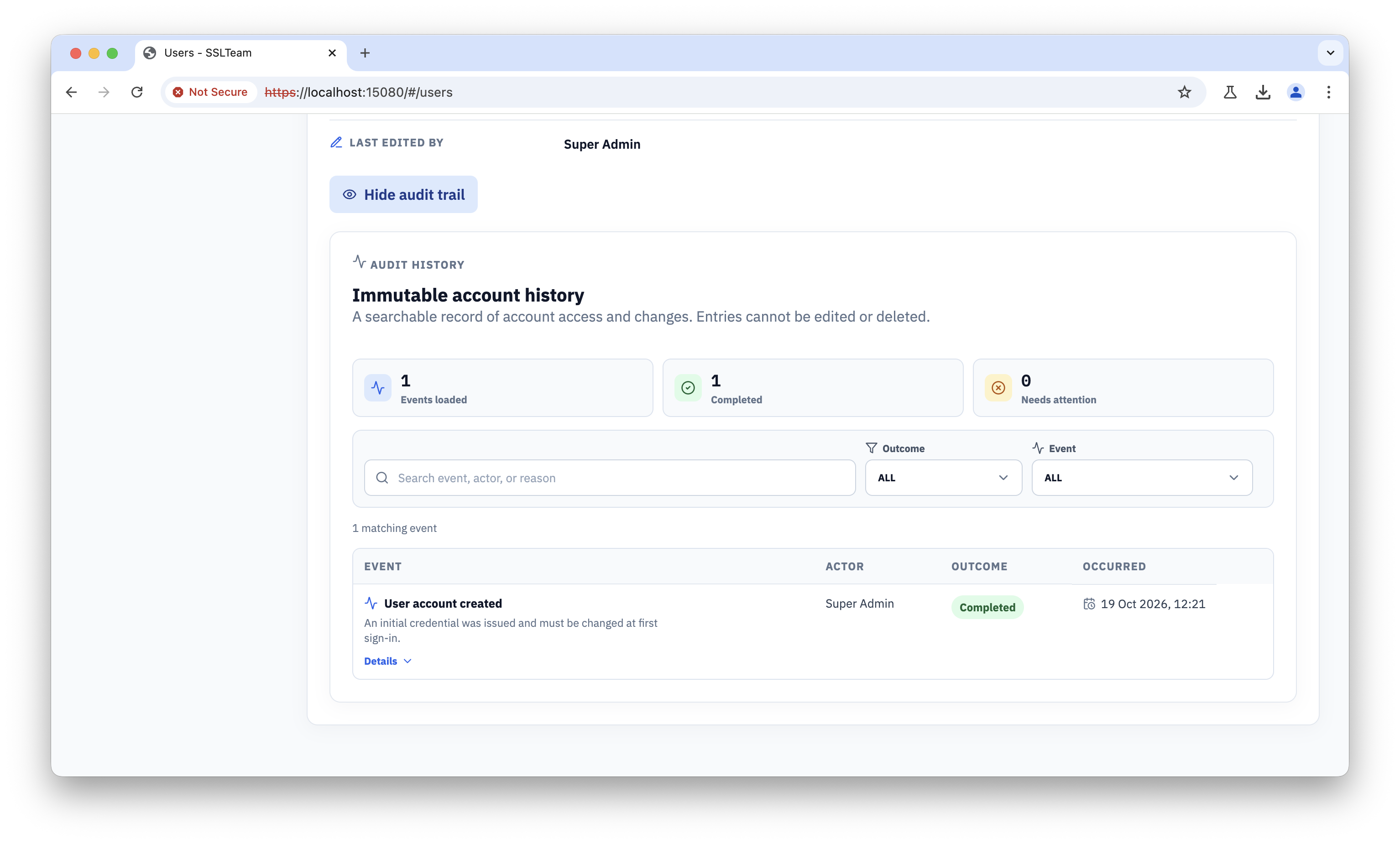
Audit events remain available when an account is later disabled or deleted. Historical actor names are resolved from retained account records.
Update details, roles, and status
Select the edit action when the user’s display name, email address, role, or access status changes.
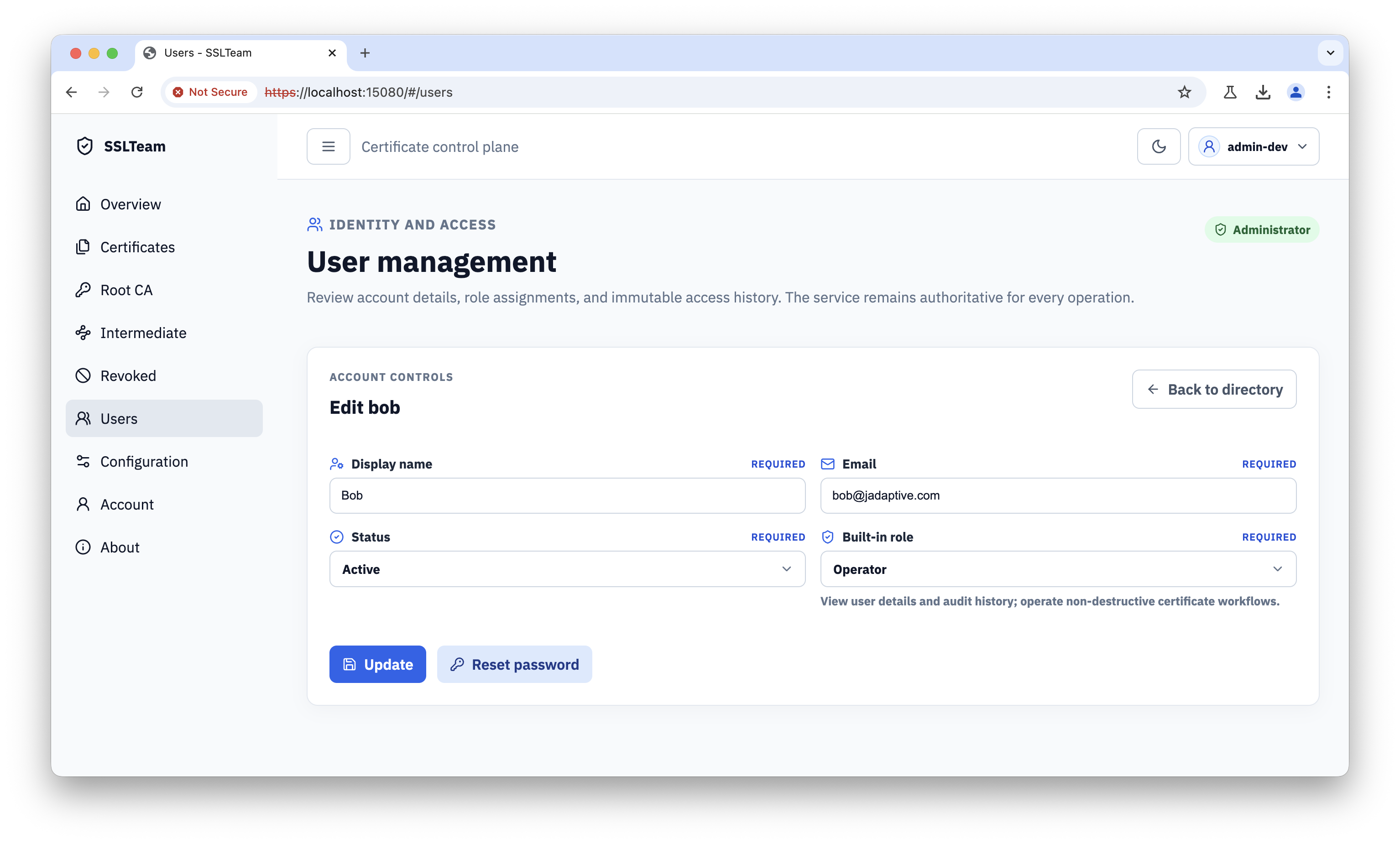
Assign a role according to the work the user must perform:
Built-in role boundaries
The three built-in roles are enforced by the server for every API and browser operation. Assign the least-privileged role that supports the user's duties:
| Capability | Administrator | Operator | Viewer |
|---|---|---|---|
| User accounts | Create, update, disable, remove (soft-delete), reset credentials, and assign roles | Read-only user details and immutable audit history | No user administration |
| Application CA setup | Create and manage the Root and Intermediate setup ceremony | Perform the initial application CA setup | Read CA state only |
| Intermediate configuration | Create, update, download, retire, and revoke | Create or update and download | Read and download |
| Root lifecycle | Read, download, retire, and revoke | Read and download | Read and download |
| Leaf certificates | Issue, download, and revoke | Issue and download | Read and download |
| Settings and audit | Modify and read settings; read audit history | Read settings and audit history | Read settings and audit history |
In practical terms:
- Administrator: has full administrative control over users, security settings, certificate issuance, certificate downloads, and Root, Intermediate, and leaf lifecycle actions. This includes retiring or revoking Root and Intermediate authorities.
- Operator: supports day-to-day certificate operations and can inspect user details, including display-name attribution and immutable audit history. Operators can issue leaf certificates and perform non-destructive application CA or Intermediate setup, but cannot create, edit, disable, delete, assign roles, or reset credentials for users. They also cannot retire or revoke Root, Intermediate, or leaf certificates or modify security settings.
- Viewer: has read-only access to operational state, certificate material, settings, and audit information. Viewers cannot create users, issue certificates, modify configuration, or perform retire/revoke actions.
The server remains authoritative: a hidden control or unavailable button does not grant access, and a role change takes effect only after the user's current session reflects the updated permissions.
Disable and enable an account
Set Status to Disabled when access must be paused but the account should remain visible for review. Disabling revokes the user’s active sessions. The account remains available in the directory and can be restored by setting Status back to Active.
After enabling the account, verify that the user can sign in and can perform only the operations granted by the current role.
Delete an account
Use Delete user only when the account should leave the normal directory. Review the confirmation carefully before proceeding.
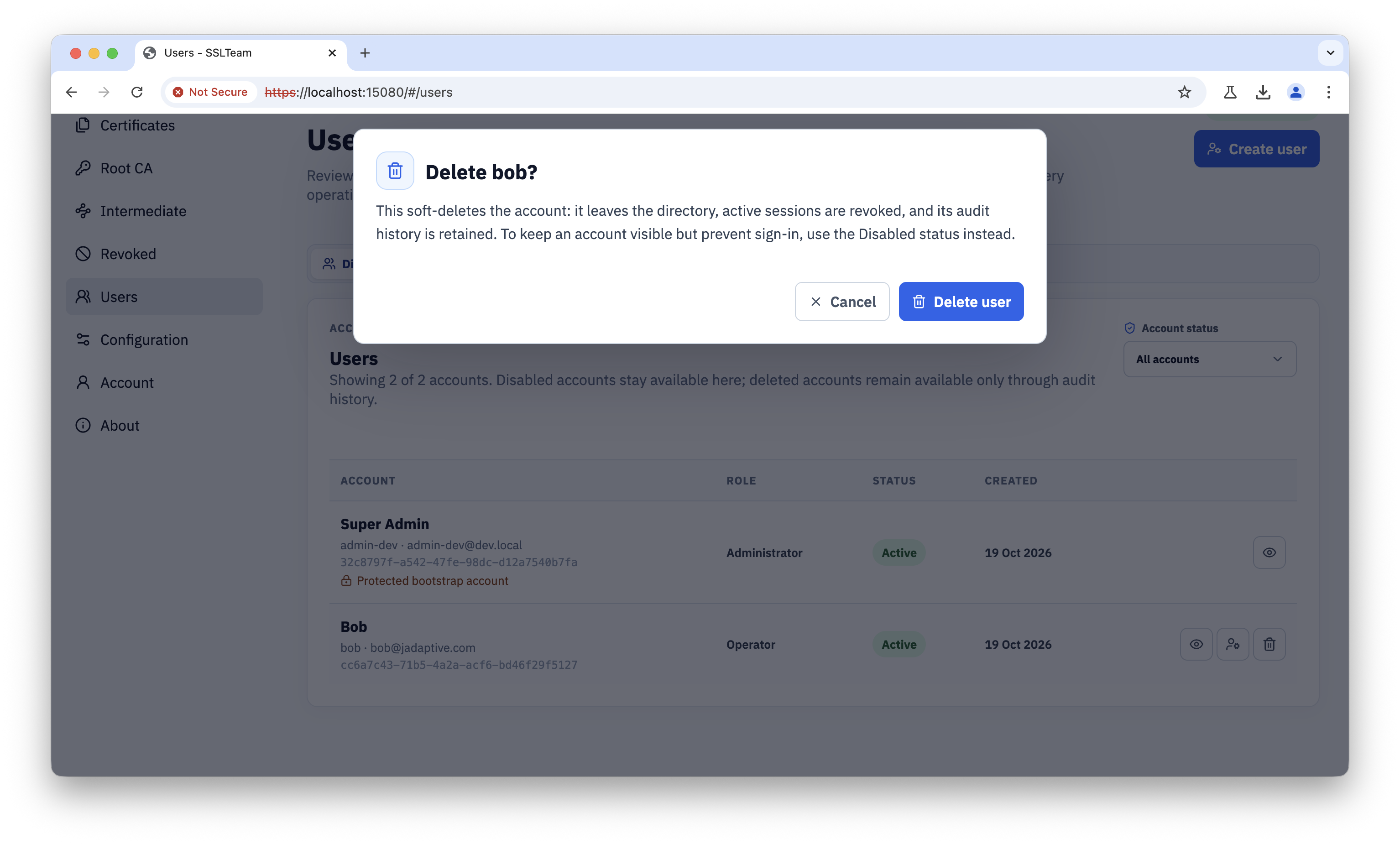
Deletion is a soft-delete, not a restore-enabled archive operation. It revokes active sessions, removes the account from normal listings, and retains immutable audit history. There is no browser or CLI restore operation. Do not use delete when a temporary access suspension is sufficient.
Reset passwords and change your own password
Use the user-management reset action when an administrator must issue a replacement credential. The confirmation explains that active sessions are revoked and that the temporary password must be changed at the next sign-in.
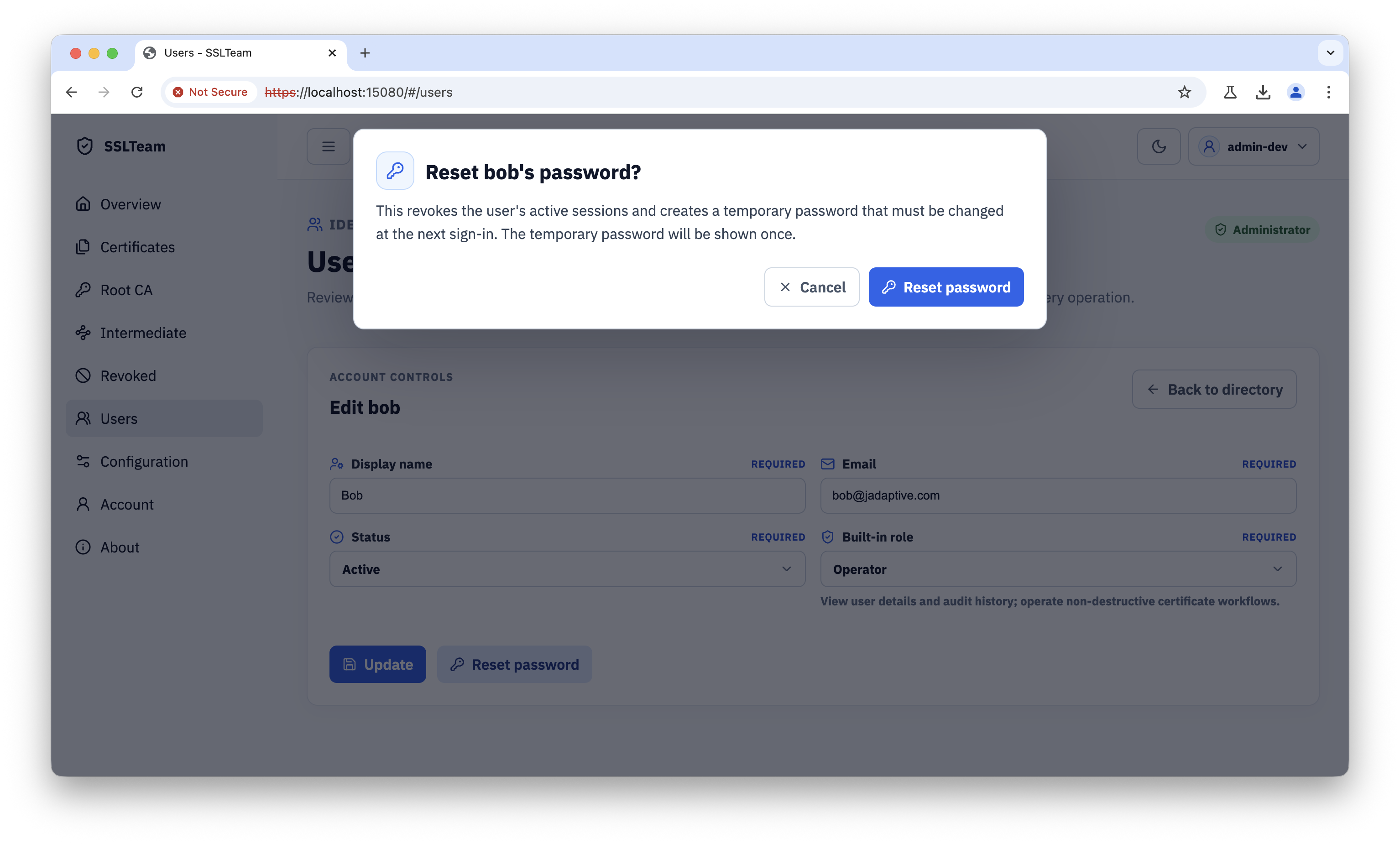
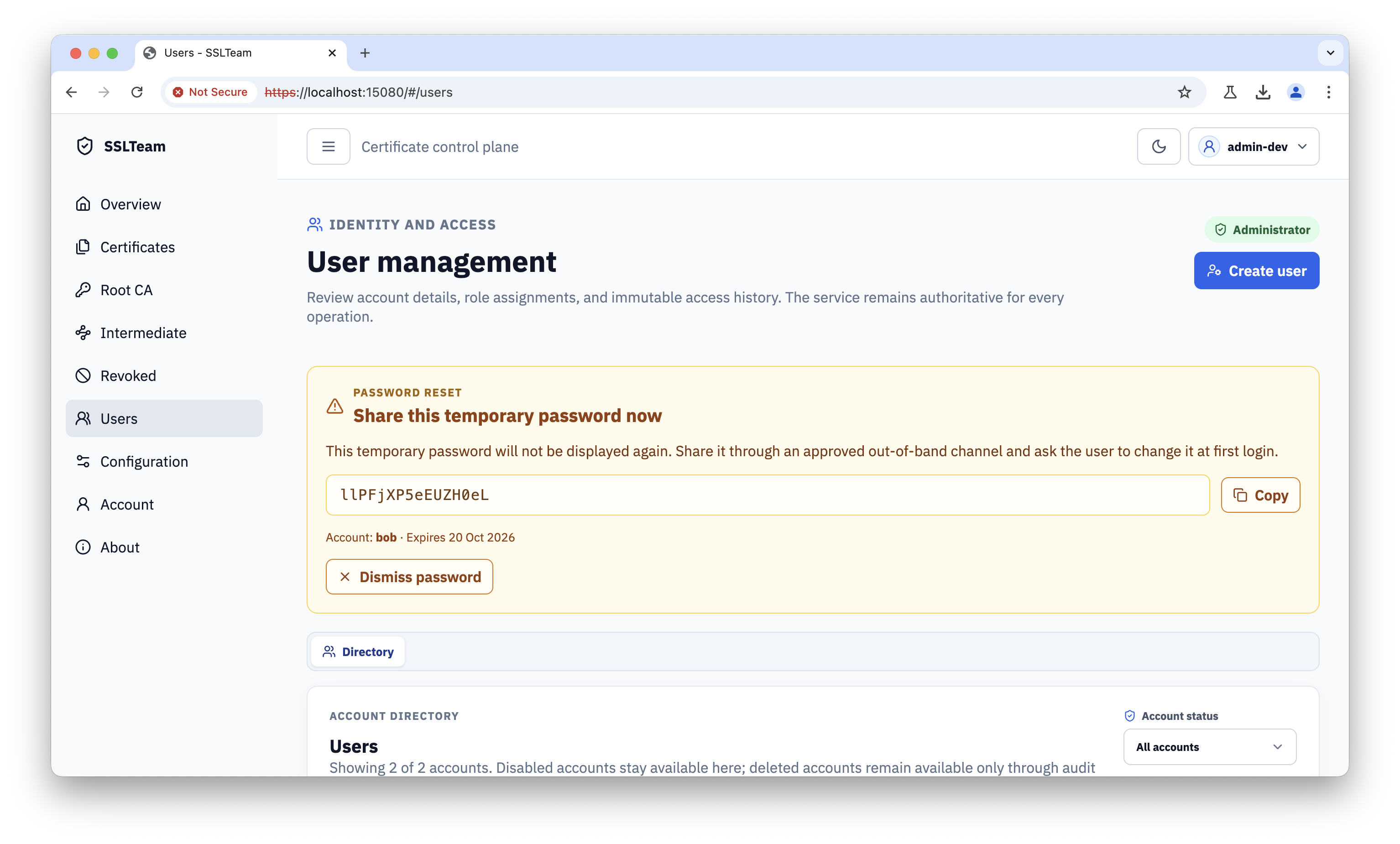
The generated password is shown once. Deliver it through a separate approved channel and do not record it in tickets or ordinary chat.
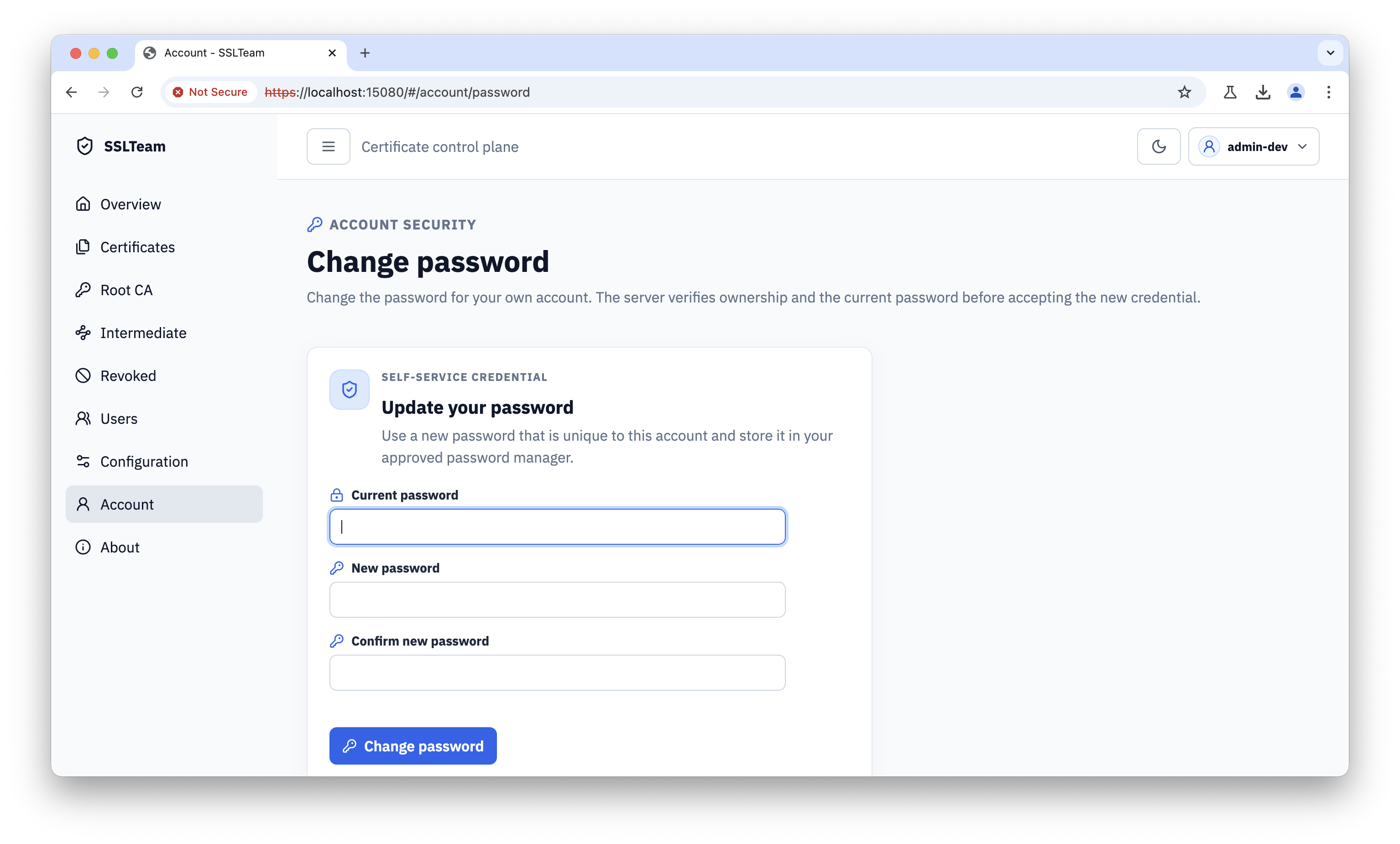
Users can change their own password from the account area.
After a role, status, or password change, verify that the user can still perform the intended task and cannot access functions outside the assigned role.
CLI user management
The CLI exposes the same server-authoritative account operations for repeatable operator workflows:
sslteam users list
sslteam users show <username-or-uuid>
sslteam users create --username <username> --display-name "<display name>" --email <email> --role viewer
sslteam users update <username-or-uuid> --status disabled
sslteam users role <username-or-uuid> --role operator
sslteam users credential-state <username-or-uuid>
sslteam users reset-password <username-or-uuid> --confirm <username-or-uuid>
sslteam users disable <username-or-uuid> --confirm <username-or-uuid>
sslteam users enable <username-or-uuid> --confirm <username-or-uuid>
sslteam users delete <username-or-uuid> --confirm <username-or-uuid> --reason "<reason>"
The show command resolves one active account from the list by username or UUID.
The reset command displays a one-time credential once. The users disable
command sets the account status to Disabled, keeps the account visible for
review, and revokes active sessions. Re-enable it with
sslteam users enable <username-or-uuid> --confirm <username-or-uuid> or the
equivalent sslteam users update <username-or-uuid> --status active. The
browser's Delete user action, DELETE /api/v1/users/{userId}, and
sslteam users delete are the same soft-delete operation: they remove the
account from normal listings, revoke active sessions, and retain audit history.
The CLI delete command requires a reason of at most 300 characters and has no
restore command. Use disable when the account should remain visible and
reversible. Both credential reset and account lifecycle operations require
appropriate permission and exact confirmation where the command requests it.
Use sslteam me first, and deliver generated credentials through a separate
approved secure channel.